 Mark John
QuickBooks Can't Find Company File on Network Drive? Fix It
Teknologi | 2026-09-22 13:08:02QuickBooks Desktop usually can't find a company file on a network drive because the network connection dropped, the mapped drive letter changed, the host computer is unreachable, or QuickBooks Database Server Manager isn't running correctly on the server. The quickest checks are to confirm the host computer is on and connected, ping it from the workstation, and verify the drive is still mapped the way QuickBooks expects. The steps below walk through each cause and fix in order.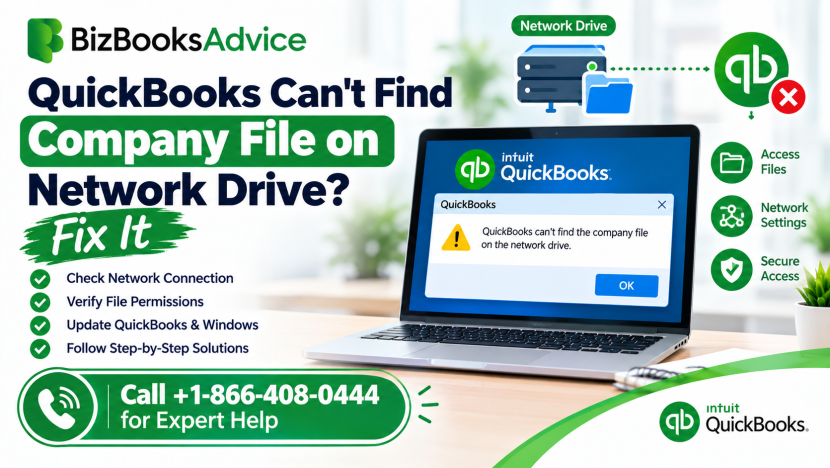
What This Looks Like on a Network Setup
Network-related access failures show up a few different ways:
- "Company file not found" only on some computers, not the host. The workstation lost its network path to the file.
- The file opens fine when logged into the host directly. The issue is network access, not the file itself.
- The mapped drive shows in File Explorer but QuickBooks still can't see it. QuickBooks is looking at a different, older path.
- Everything worked yesterday, nothing changed, and now it fails. The host restarted, lost power, or a drive letter reassigned.
- Multiple workstations fail at the same time. The problem is on the server or network, not one PC.
Note which pattern matches your situation. It tells you whether to focus on the workstation, the host computer, or the network itself.
Common causes on a network drive setup
- The host computer is off, asleep or disconnected. If the computer storing the file isn't reachable, no workstation can open it.
- The network connection dropped. Wi-Fi drops, cable issues or VPN disconnects all block access mid-session or on launch.
- The mapped drive letter changed or disconnected. Windows doesn't always reconnect mapped drives reliably after a restart.
- QuickBooks Database Server Manager isn't running. This service on the host computer is what allows other computers to reach the file.
- The file was moved on the host, but the workstation still points to the old path. QuickBooks remembers the last known location.
- Firewall or antivirus is blocking QuickBooks network ports. Security software can silently block the connection.
- Permissions on the shared folder changed. A workstation user may no longer have read/write access to the folder.
- The server went through a Windows update or restart. This can temporarily disable sharing or change network settings.
Step-by-step fixes
Fix 1: Confirm the host computer is on and connected
- Check that the computer storing the company file is powered on, not asleep, and connected to the network.
- On that computer, confirm the shared folder is still there and the file wasn't accidentally moved or renamed.
- Try opening the file directly on the host. If it opens there but not from other workstations, the problem is network access, not the file.
Fix 2: Ping the server from the workstation
This confirms whether the workstation can even reach the host computer.
- On the host computer, open Command Prompt and type ipconfig /all. Note the Host Name.
- On the workstation having trouble, open Command Prompt and type ping [host name], then press Enter.
- Check the replies: Replies with no loss: the network connection is fine, so the cause is elsewhere.Packet loss or no reply: there's a real network problem. Check cables, Wi-Fi signal, or ask your IT support to look at the network.
- Replies with no loss: the network connection is fine, so the cause is elsewhere.
- Packet loss or no reply: there's a real network problem. Check cables, Wi-Fi signal, or ask your IT support to look at the network.
Fix 3: Check the mapped network drive
- Open File Explorer and look at This PC. Confirm the network drive is listed and shows the correct drive letter.
- If it shows a red X or "Disconnected," right-click it and choose Reconnect.
- If the drive letter looks different from what you remember, that's likely the cause. QuickBooks may still be pointing at the old letter.
- Consider using the full network path (for example \\ComputerName\SharedFolder) instead of a mapped letter, since drive letters can change between sessions while the network path stays the same.
Fix 4: Check that QuickBooks Database Server Manager is running
This service on the host computer allows other computers on the network to access the company file.
- On the host computer, open QuickBooks Database Server Manager from the Start menu.
- Go to the Scan Folders tab and confirm the folder holding your company file is listed. Add it if it isn't.
- Click Scan.
- If the service shows as stopped, restart it, or restart the host computer.
If this service keeps stopping on its own, our guide on the QuickBooks Database Server Manager covers that separately.
Fix 5: Reconnect using the exact network path
- In QuickBooks, go to File → Open or Restore Company.
- Choose Open a Company File and click Next.
- Instead of relying on a saved shortcut, browse to Network and navigate manually to the host computer and shared folder.
- Select the company file directly and open it.
This resets QuickBooks' saved path and often clears the "not found" message on its own.
Fix 6: Check firewall and antivirus settings
Security software on either the host or the workstation can block the ports QuickBooks uses for network access.
- Temporarily pause the firewall or antivirus on the host computer.
- Try opening the file from a workstation.
- If it works, restore the firewall and add QuickBooks and its ports to the allowed list instead of leaving protection off. Our guide on antivirus blocking QuickBooks install or update covers exclusions in more detail, and the same principle applies to network access.
Fix 7: Confirm folder sharing and permissions
- On the host computer, right-click the folder containing the company file and choose Properties → Sharing.
- Confirm the folder is shared, and that the workstation's Windows user has Full Control or at least read/write access.
- Check Security permissions as well as Sharing permissions, since both need to allow access.
Fix 8: Restart the network equipment and computers
Sometimes the simplest fix works:
- Restart the router or switch if several computers are affected.
- Restart the host computer.
- Restart the workstation.
- Try opening the file again.
Fix 9: Move to a more stable network setup
If this keeps happening, the setup itself may be fragile:
- Avoid relying on Wi-Fi for the host computer. A wired connection is more stable for the machine storing the company file.
- Avoid storing the company file on removable or external drives that can disconnect.
- Keep the host computer set to never sleep, so it stays reachable during business hours.
Is it the network or the file itself?
A quick test separates the two:
- File opens fine on the host, fails on workstations: it's a network or permissions issue. Focus on Fixes 2–7.
- File won't open even on the host: the file itself may be damaged, or its path changed locally. That's a different problem from network access.
- It fails for everyone, all at once: check the server and network equipment first (Fixes 1, 4, 8).
When to get professional help
Consider getting help if pinging the server shows a network problem you can't resolve, Database Server Manager keeps failing, or several workstations lose access at once. A QuickBooks professional or your IT support can check the network, the host computer and the file together. You can reach BizBooksAdvice at +1-866-408-0444.
Frequently asked questions
Why does QuickBooks say company file not found only on some computers?
Usually those workstations lost their network path to the file, through a dropped connection, a changed drive letter or a permissions issue, while the host computer itself still has direct access.
Should I use a mapped drive letter or a network path in QuickBooks?
A full network path (\\ComputerName\FolderName) is more reliable, since drive letters can change between sessions or after a restart, while the network path stays the same.
Why did this start happening with no changes on my end?
A restart, a Windows update, a dropped network connection, or the host computer going to sleep can all break access even when nothing was deliberately changed.
Is my company file safe if I can't reach it over the network?
Yes, in most cases the file itself is untouched. This is usually a network or connection issue, not file damage. Confirm by opening it directly on the host computer.
Do I need Database Server Manager for a network setup?
Yes, if more than one computer needs to access the company file. It's what lets QuickBooks find and open the file across the network.
Disclaimer
Retizen adalah Blog Republika Netizen untuk menyampaikan gagasan, informasi, dan pemikiran terkait berbagai hal. Semua pengisi Blog Retizen atau Retizener bertanggung jawab penuh atas isi, foto, gambar, video, dan grafik yang dibuat dan dipublished di Blog Retizen. Retizener dalam menulis konten harus memenuhi kaidah dan hukum yang berlaku (UU Pers, UU ITE, dan KUHP). Konten yang ditulis juga harus memenuhi prinsip Jurnalistik meliputi faktual, valid, verifikasi, cek dan ricek serta kredibel.